


TL;DR
- A computer virus is malicious code that attaches itself to a file, program, document, or system area and spreads when that host is opened or executed.
- Not all malware is a virus, but all of it can damage your data, accounts, and devices.
- Email remains one of the biggest infection channels, especially through fake attachments and phishing links.
- Cracked software, fake downloads, shady websites, unsafe extensions, and infected USB drives are common entry points.
- Good computer virus prevention means using layers: updates, antivirus, backups, MFA, safe browsing, and secure email.
- Warning signs include sudden slowdowns, pop-ups, redirects, crashes, strange apps, overheating, and unusual account activity.
- If you installed a virus, disconnect from the internet, stop using the device for sensitive activity, and scan it immediately. Change passwords only from a clean device and restore files only from trusted, clean backups.
- If the infection affects work systems, banking, or keeps coming back, get professional help fast.
What Is a Computer Virus?
A computer virus is a type of malware that is able to autonomously modify legitimate computer programs and insert its own executable code to replicate itself. Unlike worms, which move independently across networks, viruses require a host program. It’s like a parasite attached to a host.
The anatomy and lifecycle of a computer virus
Most computer virus infections follow a simple chain: delivery, execution, spread, and damage.
The virus arrives through a file, document, installer, or device. Someone opens it. The code activates and then tries to copy itself, stay on the system, or trigger a payload such as data corruption, spying, or opening the door to more malware.
Break that chain, and computer virus prevention gets much easier.
How a virus works once it gets into a device
Once inside, a computer virus may modify files, hide in memory, change startup behavior, or infect other parts of the system. Some stay quiet for a long time, others act fast.
One infection can also lead to more trouble. The virus may download other malicious code, steal passwords, or weaken security settings.
Virus vs malware: what’s the difference?
Malware (malicious software) is the broad category. It covers absolutely every bad thing on the internet that aims to harm your device. A virus is one type inside it.
So, every computer virus is malware, but not all malware is a virus. Worms, trojans, spyware, and ransomware are different types of malicious software.
Types of Computer Viruses
Different types of computer virus behave, spread and leave different traces. They are primarily categorised by the subsystems they target and their residency behaviours.
Modern reality: Fileless malware and AI-driven threats
Modern attacks often do not need an obvious malicious file at all. Fileless malware can run in memory and abuse trusted system tools like PowerShell, Windows Management Instrumentation (WMI), and the Windows Registry. Such attacks either execute malicious code directly within a system's volatile memory (RAM), or manipulate native administrative tools. This leaves no traditional footprint for legacy antivirus solutions to detect.
Attackers are also using AI to speed up reconnaissance, create more convincing phishing messages and modify malicious code faster. This is why computer virus prevention now relies less on static signatures and more on behaviour-based protection, such as EDR (Endpoint Detection and Response) and XDR (Extended Detection and Response), which identify and isolate threats in real time before they can spread.
How Computer Viruses Spread
Computer virus prevention starts with knowing how infections actually get in. Most threats get invited in through normal-looking files, websites, apps, and devices.
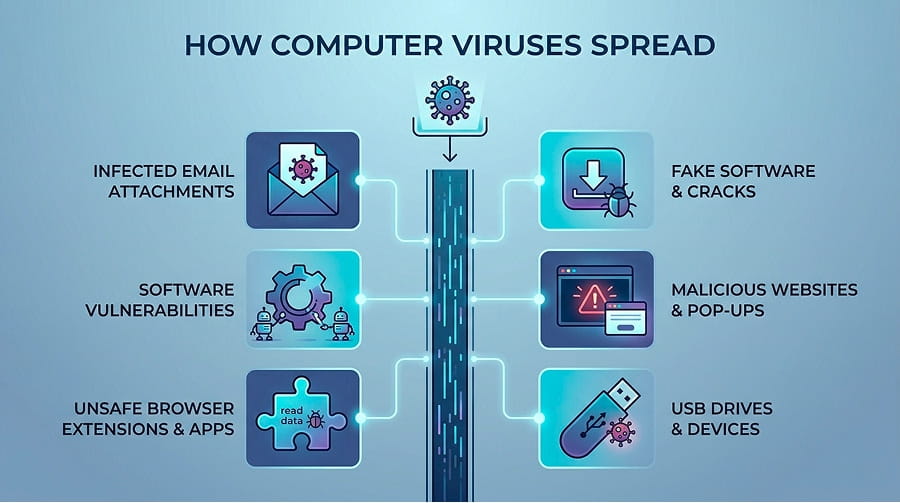
- Infected email attachments and links: Email is still one of the most common delivery channels for a computer virus. A fake invoice, resume, password reset, or shared document can carry malicious code or lead you to a phishing page that starts the infection chain.
- Fake downloads and cracked software: Cracked apps, unofficial installers, “free” utilities, and fake updates are classic infection bait. If you download software from the wrong place, you may install a computer virus before you even open the app.
- Malicious websites and pop-ups: Some websites push fake alerts, browser prompts, or poisoned downloads designed to trick you into clicking fast.
- USB drives and external devices: An infected USB drive can carry malicious files or trigger hidden scripts when opened on an unprotected system. This method is old, but it still works in offices, schools, and shared-device environments.
- Unsafe browser extensions and apps: A shady extension or app can read data, inject ads, redirect traffic, or pull in more malicious code.
- Software vulnerabilities: Outdated applications have structural holes. Automated bots constantly scan the web for these unpatched gaps to inject code without you ever clicking a thing.
Computer Virus Prevention: The Full Guide
The prevention of computer virus attacks is mostly about removing easy entry points, reducing damage if something slips through, and making risky behavior harder by default.
Keep your operating system and software updated
Updates patch known security holes before attackers can exploit them. If you delay updates for weeks or months, you leave the window open.
Use secure email services
Email remains one of the main infection channels because it blends into daily work. A secure email service helps prevent computer viruses by filtering malicious attachments, blocking spoofed senders, and reducing phishing risk. Secure email services are also often less attractive targets than traditional providers because they store less user data and are built with stronger privacy defaults. For businesses, SPF, DKIM, and DMARC make email spoofing harder.
Use trusted antivirus and real-time protection
You need security tools that scan continuously, not only on demand. Stronger setups use behavior-based detection, block potentially unwanted apps, and restrict risky actions like malicious scripts or Office macro abuse before a computer virus spreads deeper into the system.
Avoid suspicious links, attachments, and downloads
Do not click because something looks urgent, dramatic, or routine. Most successful infections begin with a small action that felt harmless at the time.
Verify email senders before opening anything
Check the real sender address, not just the display name. If a message feels strange, confirm it through another channel before opening files or clicking links.
Use strong passwords and multi-factor authentication
Passwords alone are not enough when attackers steal credentials through phishing or infostealers. MFA adds another barrier and limits the fallout after an account compromise.
Back up your files regularly
A strong approach is 3-2-1-1-0: three copies, two storage types, one off-site copy, one immutable or offline copy, and zero unchecked backup errors. That makes prevention of computer virus damage far more realistic when ransomware hits.
Limit admin access on your device
Do not use administrator rights for everyday work unless you truly need them. Lower privileges make it harder for malicious code to install deeply or change critical settings.
Download software only from official sources
Official websites, verified app stores, and trusted vendors reduce the risk of tampered installers. Random download portals often package clean-looking software with unwanted extras or something worse.
Protect your browser and email habits
Use safe browsing features, keep extensions to a minimum, and avoid random add-ons. Strong browser hygiene means stricter content blocking, secure DNS when possible, and not normalizing the habit of clicking first and thinking later.
Train yourself and your team to spot red flags
People are targeted because they are busy, not because they are foolish. Teach common signs: pressure, secrecy, fake urgency, strange file types, unexpected links, odd payment requests, and messages that do not quite sound right.
Signs of a Virus on Your Computer
A computer virus does not always announce itself, but many infections leave clues. If you notice these symptoms, a computer virus has likely already set up shop in your system.
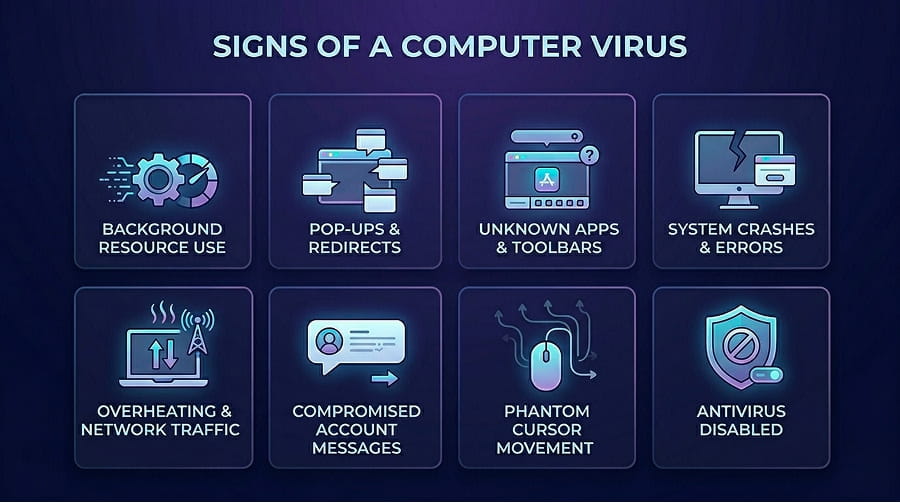
- Your computer suddenly becomes slow – A sharp drop in performance can mean malicious code is consuming memory, CPU, or disk activity in the background. If the fan suddenly runs hard for no clear reason, that is another warning sign.
- Strange pop-ups, ads, or browser redirects – Unexpected ads, fake warnings, and redirects are common signs of infection or a malicious extension. If your browser starts acting like it has a mind of its own, take it seriously.
- Unknown apps, files, or toolbars appear – If new software, shortcuts, browser toolbars, or files show up without your action, something may have installed itself silently. That is a classic red flag in computer virus prevention and response.
- Crashes, freezes, or system errors – Frequent crashes, random restarts, or strange error messages can point to corrupted files or active malicious code. Not every crash means a computer virus, but repeated instability should never be ignored.
- Unusual network activity or overheating – A device that runs hot while idle or shows unexplained network traffic may be sending data, downloading payloads, or performing hidden tasks. On Windows, a quick check of Task Manager and netstat -ano can help spot suspicious outbound connections.
- Your accounts start sending messages you didn’t write – If contacts receive emails or messages from you that you never sent, your account or device may be compromised. At that point, computer virus prevention becomes incident response, and you need to act fast.
- The phantom mouse – Does your cursor move on its own, or do applications open without your input? A remote access trojan has almost certainly hijacked your device.
- Disabled security software – Malicious code hates competition. If your antivirus turns itself off and you are unable to restart it manually, your device is probably under attack.
What to Do If You Installed a Virus
If you installed a computer virus, speed matters. Do not keep clicking around, do not log into more accounts, and do not assume the problem will go away on its own. The goal is to contain the threat, stop further damage, and recover cleanly.
- Disconnect from the internet immediately. Turn off Wi‑Fi, unplug the Ethernet cable, and disconnect external network access right away. This can stop the computer virus from sending data out, downloading more malicious code, or spreading to other devices.
- Boot into Safe Mode. Restart your device. For Windows users, interrupt the boot process to enter Safe Mode; Mac users can hold the Shift key while restarting. This loads only the absolute bare-minimum software, starving the malicious code of the resources it needs to execute.
- Stop using the infected device for sensitive activity. Do not log into email, banking, work tools, cloud storage, or password managers from that device. If the system is compromised, every new login may hand more data to the attacker.
- Run a full antivirus or anti-malware scan. Use a trusted security tool and run a full scan, not a quick one. If the device behaves badly or blocks security tools, use an offline or bootable scanner to check the system outside the normal operating environment.
- Remove suspicious files and apps safely. Do not open unknown files “just to check.” Quarantine or remove suspicious apps, extensions, downloads, and recently installed software through trusted security tools, not random cleanup utilities.
- Change passwords from a clean device. Use another device you trust and change passwords for your email, banking, work, cloud, and any account tied to sensitive data. Sign out of active sessions where possible and turn on multi-factor authentication if it is not already enabled.
- Check your email, banking, and work accounts for breaches. Look for password reset emails, suspicious logins, unknown forwarding rules, unusual transactions, new devices, or messages you did not send. If a work account is involved, tell your IT or security team immediately.
- Restore files from backups if needed. If files are damaged, encrypted, or missing, restore them only from clean backups you trust. Do not restore blindly from a backup that may also contain the computer virus.
- When to get professional help. Get professional help if the infection involves work systems, banking, customer data, ransomware, repeated reinfection, or signs that the device is still compromised after cleanup. In serious cases, the safest path is a full wipe, clean OS reinstall, and restore from verified backups.
- Upgrade your perimeter. Once the fire is out, ask yourself how the threat bypassed your defenses in the first place.
FAQ About Computer Virus Prevention
Can Macs and mobile phones get viruses?
Absolutely. While hackers historically targeted Windows operating systems, Apple devices and Android phones are also vulnerable to sophisticated spyware and malicious apps.
What is the best way to prevent computer viruses?
The best computer virus prevention strategy is layered: keep software updated, use trusted security tools, avoid suspicious files and links, and back up your data. No single tool does all the work.
Can a computer virus steal passwords?
Yes. A computer virus or other malware can steal saved passwords, session cookies, login data, and even keystrokes, especially after you enter them on an infected device.
How do I know if my computer has a virus?
Common signs include slow performance, crashes, strange pop-ups, browser redirects, unknown apps, and accounts acting without your input. One sign alone may mean little, but several together are a strong warning.
Is antivirus enough to stay protected?
No. Antivirus is important, but prevention of computer virus threats also depends on updates, backups, safe email habits, strong passwords, MFA, and careful downloads.
What should I do after clicking a suspicious link?
Close the page, do not enter any information, disconnect if something starts downloading, and scan the device. If you typed credentials, change them immediately from a clean device.
Can opening an email give you a virus?
Usually, the bigger risk comes from clicking a link, opening an infected attachment, or enabling content such as macros. But a suspicious email should still be treated carefully, especially in business environments.
How often should I scan my computer for viruses?
Real-time protection should always be on. In addition, run full scans regularly and any time you notice unusual behavior, download something risky, or suspect an infection.



.jpeg)