

TL;DR
What is AirDrop: AirDrop is Apple's built-in, fast file-sharing feature that works between nearby Apple devices.
Requirements for sender and recipient: Both devices need Wi-Fi and Bluetooth turned on, to be nearby, unlocked, and not set to Receiving Off. If using Contacts Only, the recipient must have your Apple Account email or phone number in your contact card.
How to turn it on on iPhone/iPad/Mac: Go to Control Center > AirDrop > choose your visibility – ideally "Contacts Only" to stay hidden from strangers.
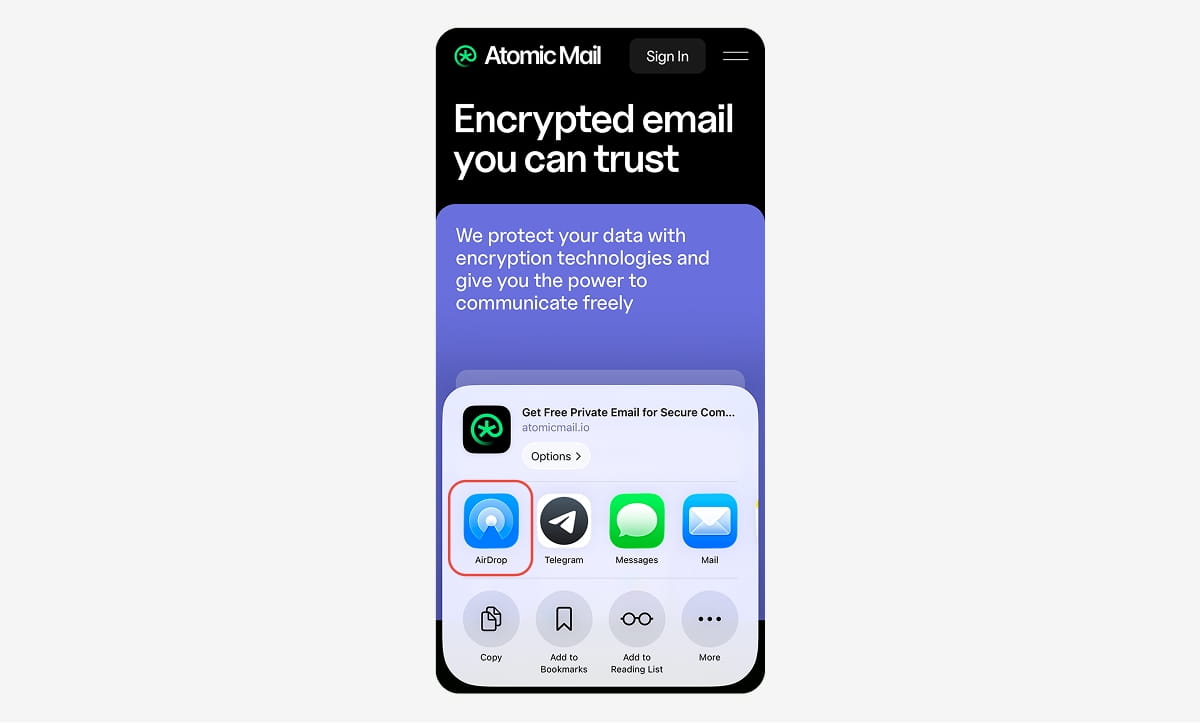
How to AirDrop: Open the file > tap or click Share > choose AirDrop > select the nearby device. The recipient may need to tap Accept.
How to AirDrop to Android: Classic AirDrop does not work with every Android phone. But some newer Android devices support Quick Share compatibility, so limited iPhone-to-Android sharing is now possible. To detect devices, set Everyone for 10 Minutes.
AirDrop security risks: AirDrop is encrypted, but the main risks are unwanted requests, cyberflashing, spoofed device names, and leaving Everyone on too long. The safest habit is to keep it on Contacts Only or off, then turn it off after the transfer.
The ultimate alternative: AirDrop is great for nearby Apple devices, but it has ecosystem and privacy limits. If you want to send files securely to any device, Atomic Mail is the stronger option with encrypted emails and encrypted attachments.
What Is AirDrop?

AirDrop is Apple’s built-in feature for sending photos, videos, documents, links, contacts, and other files between nearby Apple devices. It’s a quick wireless transfer tool for iPhone, iPad, and Mac.
How does AirDrop work?
AirDrop is smarter than it looks. It uses Bluetooth Low Energy to detect nearby compatible devices and start the connection. Then, once the devices see each other, it creates a direct peer-to-peer Wi-Fi link to move the actual file. That matters because Bluetooth is great for discovery, but Wi-Fi is much better for speed.
So, your device first finds another Apple device nearby, checks whether it is available to receive, then opens an encrypted local connection and transfers the file directly.
Why AirDrop is so fast and convenient
Because it bypasses your router completely. You aren't uploading your sensitive documents to an intermediary server and then downloading them again. The data moves directly from device A to device B. This local transfer method is the reason why using AirDrop on iPhone is so much faster than waiting for a cloud drive to sync. The only limiting factor is the Wi-Fi chips inside the devices themselves.
How To Turn AirDrop On
Before you use AirDrop, the receiving device has to be discoverable. This is where many people get stuck. They know how to AirDrop in theory, but the other device never appears. Usually the problem is the visibility setting.
How to turn AirDrop on iPhone / iPad
- Open Control Center (swipe down from the top-right corner of your screen).
- Press and hold the network settings block (the square with your Wi-Fi and Bluetooth icons).
- Tap AirDrop.
- Choose Contacts Only or Everyone for 10 Minutes.

You can also do it through settings:
Open Settings > General > AirDrop > Choose who can send files to your iPhone.
If you are figuring out how to AirDrop for the first time, this is the setting to check before anything else. If the device is set to not receive files, nobody nearby will see it.
How to turn AirDrop on on Mac
- Click Control Center in the menu bar (top right corner, looks like two small switches).
- Click AirDrop.
- Turn it on and choose whether you want to be discoverable by Contacts Only or Everyone.

You can also do it through settings:
Open System Settings > General > AirDrop & Handoff > AirDrop > Choose who can send files to your Mac.
There is also a Finder route, and sometimes it is easier because you can see nearby devices in one place:
Open Finder > Click AirDrop in the sidebar > Open the Allow me to be discovered by menu > Choose the option you want.
Contacts Only vs. Everyone vs. Receiving Off
This setting decides who can find your device. A small choice, but it changes both convenience and privacy.
* On newer iPhones, Everyone appears as Everyone for 10 Minutes, which is Apple’s way of reducing accidental exposure.
How To Turn AirDrop Off
The process is the same as when you turn AirDrop on.
How to turn off AirDrop on iPhone
Via the Control Center: Control Center (swipe down from the top-right corner of your screen) > Press and hold the network box > AirDrop > Receiving Off.
Via settings: Open Settings > General > AirDrop > Receiving Off.
How to turn off AirDrop on Mac
Via the Control Center: Control Center (top right corner, looks like two small switches) > AirDrop > Toggle Off.
Via Settings: System Settings > General > AirDrop & Handoff > AirDrop > No one.
Via Finder: Finder > AirDrop in the sidebar > Open Allow me to be discovered by > Choose No One.
Keeping AirDrop off by default is the most secure setting. It helps protect you from unwanted file requests, random device visibility, and cyberflashing in public places.
For many, AirDrop on iPhone becomes so routine that they stop thinking about the setting entirely. A better habit is simple: turn it on when you need a transfer, then turn it off again as soon as the file arrives.
How To AirDrop: Steps for Sharing Files
Once AirDrop is turned on, the actual transfer is easy. The logic stays almost the same in every case: open the file, tap Share, choose AirDrop, pick the nearby device, then confirm on the receiving side if needed.
How to AirDrop from iPhone to iPhone
Using AirDrop on iPhone to send files to another iPhone is the most common scenario.
- Open the photo, video, link, contact, note, or other file you want to share.
- Tap Share.
- Tap AirDrop.
- Select the other iPhone when it appears.
- Ask the other person to tap Accept if prompted.
If both devices belong to you and use the same Apple Account, the transfer may go through automatically. If the other iPhone does not appear, check whether AirDrop is turned on and whether the receiving device is set to Contacts Only or Everyone.
Bring Devices Together feature
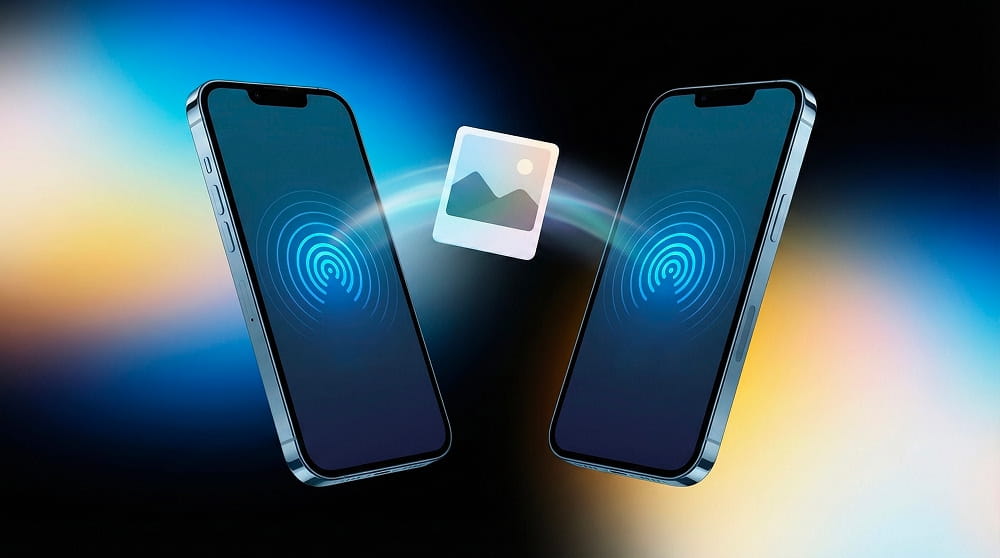
On devices with iOS17 or later, Apple includes Bring Devices Together features inside AirDrop settings. Just select the image or a contact and physically bring the top of your device close to the top of their iPhone. Both phones will vibrate, a glowing liquid animation ripples across the glass, and the transfer initiates automatically.

If you do not want that, go to Settings > General > AirDrop and turn off Bring Devices Together.
How to AirDrop from iPhone to Mac
- On your iPhone, open the file you want to send.
- Tap Share.
- Tap AirDrop.
- Select your Mac from the list of nearby devices.
- Accept the transfer on your Mac if asked.
How to AirDrop from Mac to iPhone
AirDrop also works the other way around.
- On your Mac, find the file in Finder.
- Right-click the file or click Share.
- Choose AirDrop.
- Select the iPhone from the nearby devices.
- Tap Accept on the iPhone if prompted.
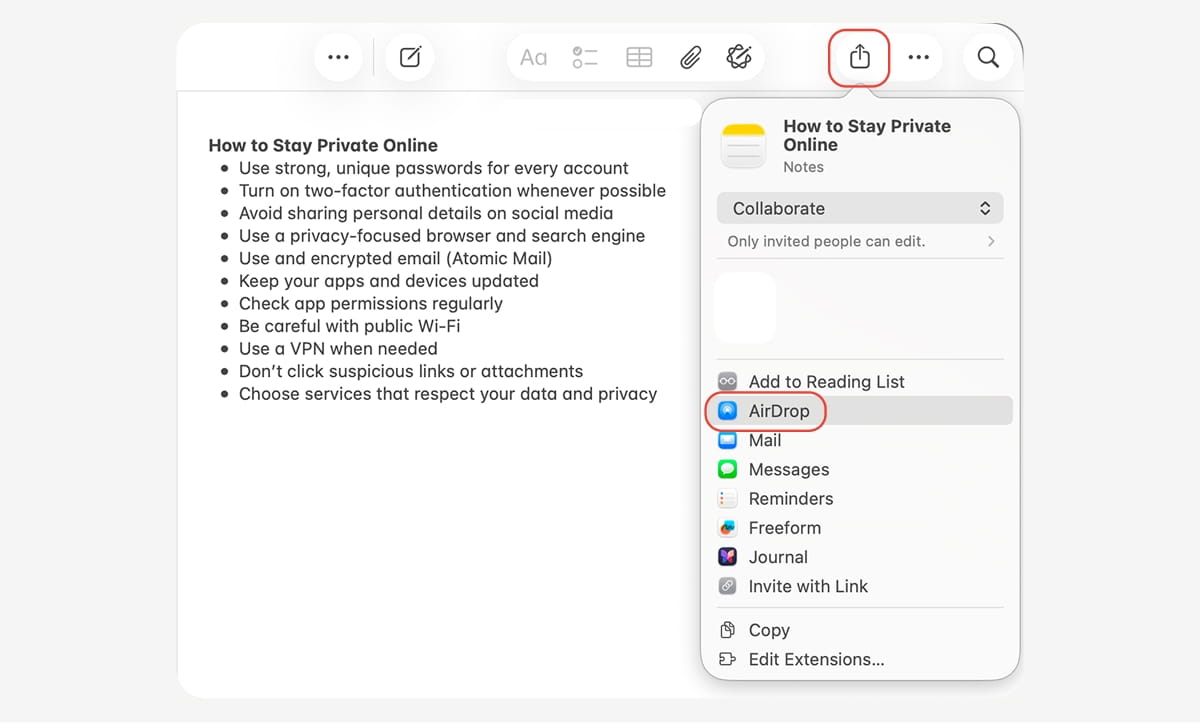
You can also open Finder > AirDrop and drag files onto the target device.
How to AirDrop from iPhone to Android
For more than a decade, this was restricted. AirDrop stayed inside Apple’s world. That changed in late 2025, when Google rolled out Quick Share compatibility with AirDrop on supported phones (e.g., Pixel 9/10, Galaxy S26). So you still cannot use classic AirDrop with every Android phone. But on some newer Android devices, Quick Share can now work with Apple’s AirDrop system.
If the Android phone supports this feature:
- Turn AirDrop on for the iPhone.
- Set the iPhone to Everyone for 10 Minutes.
- On the Android device, open Quick Share and put it in receive mode if needed.
- Start the transfer from the sending device.
- Accept the transfer on the receiving side.
To send to an iPhone, the iPhone user must set their AirDrop to Everyone for 10 Minutes as well.
If you want to share files safely to any device, use Atomic Mail. It is a secure email service built around encryption, which means your messages stay protected and attachments are encrypted too when you send encrypted mail.
Where Do AirDrop Photos And Files Go?
The answer depends on the device and the file type.
Where AirDrop photos go on iPhone
Images and videos go directly into the native Photos app (Camera Roll).
Documents (.PDF,.ZIP) open the Files app for destination selection.
Web links open Safari, and App Store links open the App Store.
Contacts go to the Contacts app.
Where AirDrop files go on Mac
On a Mac, AirDrop files often go to the Downloads folder by default. That is the first place to check if you receive a photo, PDF, document, or other file through AirDrop.
In some cases, your Mac may open the file in the relevant app instead. A photo might open in Photos. A link may open in your browser. A contact may open in the Contacts app. So the result is not always identical for every file type.
How to find missing AirDrop items
If an AirDrop file seems to disappear or someone sent you a weird file format, do not panic. iOS doesn't have a default app for everything. Usually, a menu pops up asking, "What app do you want to open this with?"
Check these places:
- Photos on iPhone for pictures and videos
- Downloads on Mac for most received files
- Files on iPhone or iPad for documents
- The matching app that can open the item
- Search by filename using Spotlight on Mac or Search on iPhone
A tip: after using AirDrop on iPhone, open the destination app immediately and confirm the file arrived. It saves time and removes the “where did it go?” moment later.
How To Change Your AirDrop Name
Your AirDrop name is the name other people see when your device appears nearby. That sounds like a tiny detail, but if your device is named something vague, messy, or too personal, AirDrop becomes less convenient and less private at the same time.
How to change AirDrop name on iPhone / iPad
- Open Settings.
- Tap General.
- Tap About.
- Tap Name.
- Enter the new device name.
Modifying this name instantly updates the AirDrop and Bluetooth identity.
How to change AirDrop name on Mac
- Open System Settings.
- Go to General.
- Open About.
- Change the Name field.
Advanced users may also need to edit the "Local hostname" under System Settings > General > Sharing if legacy Bonjour networking caches the wrong identifier.
Why your AirDrop name matters for privacy
Hackers use Bluetooth sniffers to map potential targets in crowded spaces. If your device’s name is "Sarah CEO's MacBook Pro," you just painted a big bullseye on your back for a targeted spear-phishing attack or physical device theft. You are freely giving away your identity, your potential corporate value, and the exact tier of expensive hardware you are carrying.
Anonymize your devices.
Is AirDrop Safe?
AirDrop is reasonably safe by design, but not foolproof.
From a technical view, Apple says AirDrop uses Bluetooth Low Energy to discover nearby devices, then switches to Apple’s peer-to-peer Wi-Fi link for the actual transfer. That connection is encrypted with TLS, so the main weakness is usually not cryptography. It is human behavior: bad settings, misleading device names, crowded spaces, and rushed taps.
The bigger issue is exposure. If you make your device too visible, you increase the chance of unwanted requests, social engineering, and privacy leaks. In practice, the safest default is Receiving Off, with Contacts Only as the best everyday balance for most users.
Common privacy risks and mistakes
The real risks are social and metadata-driven.
- Cyberflashing: if AirDrop is open to nearby strangers, someone can send unwanted or explicit images in public places. And many people accepting files too quickly without even checking who sent them
- That is exactly why Apple narrowed the old Everyone option into Everyone for 10 Minutes on newer devices.
- Social engineering and identity spoofing: an attacker can rename their device to something familiar like Mom’s iPhone or IT Department to make the request look trustworthy
- Identity leakage: your AirDrop name may expose your real name or device model to nearby people
- Overexposure: leaving Everyone on longer than necessary widens the attack window
How to AirDrop safely
A good how to AirDrop safety routine is simple:
- Keep AirDrop on Receiving Off or Contacts Only most of the time.
- Use Everyone for 10 Minutes only when you need to receive from a non-contact.
- Turn AirDrop off again after the transfer.
- Rename your iPhone or Mac so it does not reveal too much personal information.
- Accept files only from people you recognize.
- Avoid receiving files in crowded public places unless absolutely necessary.
- Ensure that the "Limit Precise Location" features introduced in recent OS updates remain active to prevent ad-hoc network scans from identifying your exact location.
Want to share files with maximum safety?
AirDrop is convenient for nearby Apple devices. But if the file is sensitive, crosses platforms, or needs stronger privacy controls, AirDrop stops being the best tool.
With Atomic Mail, your messages stay protected and attachments are encrypted too when you send encrypted mail.
AirDrop Not Working? Fixes That Actually Help
When AirDrop fails, check these:
- Make sure both devices have Wi-Fi and Bluetooth turned on, are within about 30 feet, are not using Personal Hotspot, and are not set to Receiving Off.
- Ask the other person to check their AirDrop settings. If they use Contacts Only, your contact card must include your Apple Account email or phone number. If you are not in their contacts, ask them to switch to Everyone for 10 Minutes.
- Toggle Wi-Fi and Bluetooth off and back on. That often clears temporary glitches.
- Restart one or both devices if AirDrop stays stuck.
- If you use a VPN, pause it or enable local network access. Some VPNs block AirDrop because they treat the ad-hoc connection as suspicious.
- On Mac, temporarily disable the Application Firewall if AirDrop keeps failing.
- If you are sending huge batches, split them up. AirDrop has no formal file-size cap, but very large transfers can fail because of memory pressure or device heat.
- Update iOS or macOS if an update is pending.
And if the job is urgent, do not get stuck in a loop with a flaky transfer. Use another route. If privacy matters, send it through Atomic Mail securely instead of wrestling with AirDrop for twenty minutes.
FAQ
Can you AirDrop to Android?
Not in the classic old way on every Android phone. But some newer Android devices (e.g., Pixel 9) now support Quick Share compatibility with Apple’s AirDrop system, so limited iPhone-to-Android sharing is possible on supported models.
Is there a file size limit for AirDrop?
There is no strict software limit. However, to prevent crashes when sharing large volumes of files (50-100), it is recommended to batch them.
Do both devices need AirDrop turned on?
Absolutely. The sender needs it to broadcast. The receiver must be listening (set to Contacts Only or Everyone) for the radar to detect them.
Can strangers send me files through AirDrop?
Yes, if your receiving status is "Everyone for 10 Minutes." That is why keeping AirDrop on Contacts Only or turning it off after a transfer is the safer habit.
Why is my AirDrop name wrong?
Your device pulls its share name directly from your core settings or your personal Contact card. You can quickly fix this by navigating to Settings > General > About > Name.
Why are my AirDrop photos not showing up?
On AirDrop on iPhone, received photos usually go to the Photos app. On Mac, most files go to Downloads, though some items may open directly in the app that handles them.
Does AirDrop work without internet?
Yes. AirDrop does not need a normal internet connection to transfer files. It relies on nearby wireless communication between the devices instead.
What is the best way to use AirDrop safely?
Keep it off by default, use Contacts Only for daily sharing, switch to Everyone for 10 Minutes only when needed, and turn it off again after the transfer. If the file is sensitive, encrypted email through Atomic Mail is the safer option.