

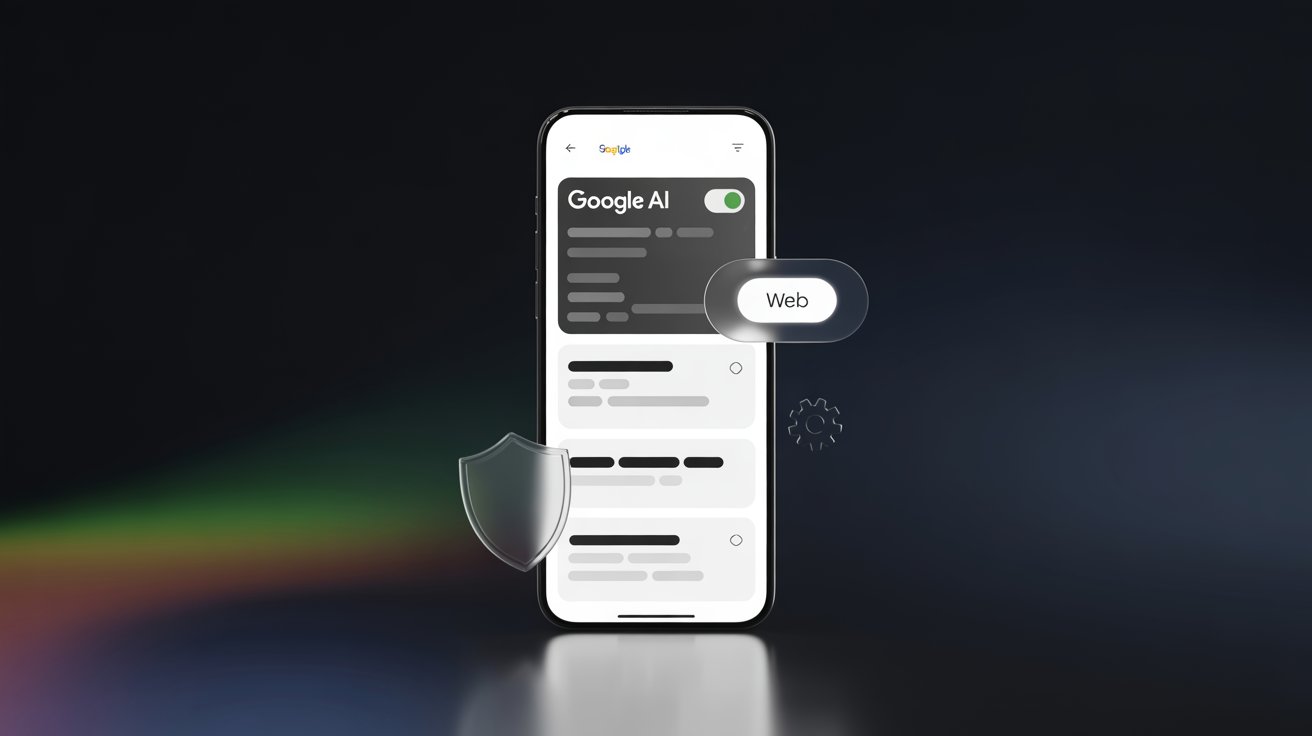
You’re not imagining it. Google is adding AI across more products each month. So when people search how to turn off google AI, they often mean different things.
For example, some users want to remove AI Overviews from Google Search. Others want to stop AI Mode from showing up. Meanwhile, plenty of people are trying to disable Gemini features in Google Chrome or on Android. And if you use Gmail, you might just want fewer smart suggestions.
However, there’s an important catch. You can’t always flip one master switch and be done. Still, you can reduce AI fast. You can also make Google feel “classic” again. Next, we’ll walk through the most effective ways to reduce AI across Search, Chrome, Android, and Gmail, plus a few workarounds that bring back more “classic” results.
TL;DR
Google Search
- If your goal is to remove AI from Google Search, use the Web filter. It brings back mostly classic links fast.
- If your goal is to turn off AI Mode on Google, check Search Labs for toggles.
- When there’s no toggle, stick with Web as the reliable workaround. This is the quickest way to turn off AI in Google Search for most people.
Chrome
- To turn off Gemini in Chrome, start in Chrome Settings.
- Next, review Privacy and security plus Sync and Google services.
- Then reduce suggestion-heavy features that feel AI-driven.
- If Gemini still appears, you can disable Gemini Chrome by using a separate profile.
Alternatively, sign out of sync on that device.
Android
- If Gemini replaced your assistant, you can switch back to Google Assistant from Gemini.
- Open Gemini or Assistant settings, then choose Google Assistant when available.
- Also turn off “Hey Google” triggers if you want fewer voice prompts.
Gmail
- To turn off Gemini in Gmail, disable Smart Compose and Smart Reply first.
- Then turn off Smart features for fewer automated suggestions.
- If you use a work account, check Workspace smart settings too.
AI Overviews vs AI Mode vs Gemini
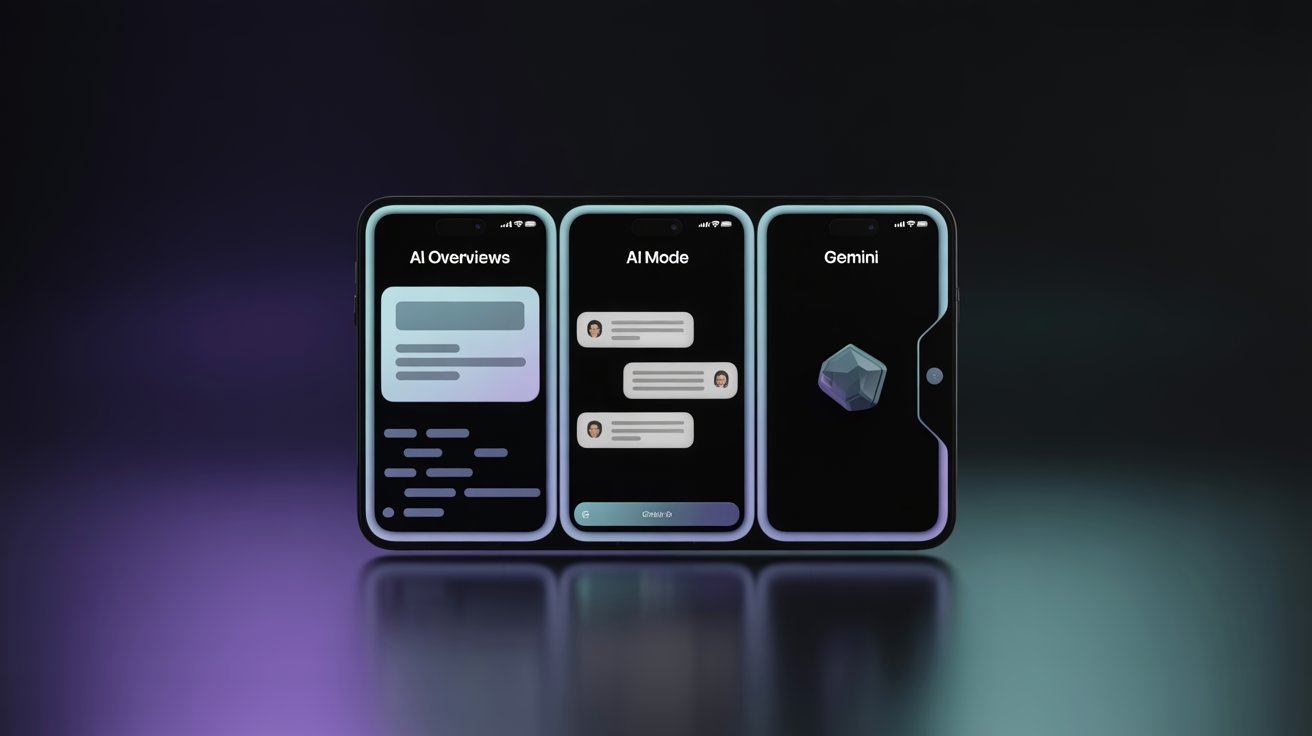
When people search how to turn off google AI, they’re usually trying to disable one of three things. So first, match what you see on your screen to the right label. Then you can apply the correct fix.
1) AI Overviews (the summary box in Google Search)
What it looks like: a short AI-written summary at the top of results.
Where it appears: Google Search results pages.
Why it matters: it can push regular links down.
If this is your issue: you’re basically asking how to remove AI from google search. In most cases, the fastest solution is using the Web filter to get classic links.
2) AI Mode (a chat-style search experience)
What it looks like: search turns into a more conversational, AI-first interface.
Where it appears: Google Search for some users, depending on rollout and settings.
Why it matters: it changes how results are shown, not just one section.
If this is your issue: you’re searching how to turn off AI mode on google. The typical fix is checking Search Labs for AI toggles. If there’s no toggle, use the Web filter as your fallback.
3) Gemini (Google’s AI assistant across apps)
What it looks like: Gemini prompts, buttons, writing help, or assistant features.
Where it appears: across products like Chrome, Android, and Gmail.
Why it matters: each product has its own controls.
⚠️ If this is your issue: you’ll need the product-specific path:
- Chrome → turn off gemini in chrome / disable gemini chrome
- Android → switch back to google assistant from gemini
- Gmail → turn off gemini in Gmail
⚠️ Quick rule:
If it’s a summary box in Search, it’s AI Overviews.
If Search feels like a chatbot, it’s AI Mode.
If it’s inside an app, it’s likely Gemini.
Turn Off Google AI in Search: What’s Actually Possible
If you’re trying to turn off Google AI in Search, here’s the key reality: AI Overviews are built into Google Search, so there isn’t one universal, permanent “Off” switch for everyone.
Still, you can reduce how often you see AI in four practical ways:
1) Use the Web filter
This is the most reliable option. It shifts results toward classic blue links and removes many Search add-ons, including AI Overviews in that view.
2) Check Search Labs (if you have it)
Some accounts show AI-related experiments in Search Labs. If you see an “AI Overviews and more” style option, you may be able to toggle it off. Availability varies by region and account.
3) Use a browser workaround for “Web-only” results
If you want a more consistent experience, you can set up a Web-style Google shortcut (commonly via a udm=14 search URL). This doesn’t “disable” AI globally, but it helps you land on classic results faster.
4) Hide AI with extensions
Extensions can remove AI Overviews visually. This is cosmetic, but it can make Search feel normal again.
If your goal is classic results, start with Web, then add a workaround only if you need it.
How to Remove AI From Google Search
If you want to remove AI from Google Search, the best approach is simple. Start with what Google provides. Then add a workaround if you want a more consistent, link-first view.
Use the “Web” Filter (Official, Always Available)
The Web filter is the most reliable way to reduce AI in Search. Google explains that AI Overviews are a core Search feature and “features cannot be turned off.” However, Google also says you can switch to the Web filter after you search. That filter shows only text-based links, without “features like AI Overviews.”
⚠️ How to use it
- Search on Google as usual.
- Find the filter row near the top.
- Select Web.
⚠️ If you do not see Web, tap More and look again. Some layouts hide it. If you are on mobile, the filter row may require horizontal scrolling.
What changes when you use Web
- You get a cleaner, link-forward page.
- AI Overviews usually disappear in that view.
- Many extra modules also drop away.
The main downside is consistency. Web is a view you select. It is not always a permanent default. Still, it is the fastest “official” way to get classic results back.
Turn Off “AI Overviews and More” in Search Labs (If You See It)
Next, check Search Labs. Google notes that some AI features are controlled there. If your account shows a Labs option like “AI Overviews and more,” you can try turning it off.
⚠️ Steps
- Make sure you are signed in to your Google Account.
- Open Google Search and open Search Labs.
- Find AI Overviews and more.
- Toggle it Off.
If you do not see that card, that is normal. Labs availability depends on rollout, region, and account type. Also, Google can rename or remove Labs experiments. So do not rely on Labs alone. If you want a guaranteed reduction, go back to the Web filter.
Set Web-Only Google as Your Default With udm=14
If you want a more “semi-permanent” fix, use udm=14. Adding udm=14 to a Google search URL often forces the Web-style results view by default. Many people use it to avoid AI Overviews and extra clutter.
💻 Desktop (Chrome) method: make it your default search
- Open Chrome Settings.
- Go to Search engine and then Manage search engines and site search.
- Add a new site search entry.
- Use this URL format: https://www.google.com/search?q=%s&udm=14
- Set it as default for address-bar searches.
Now you land on a more classic, link-first layout without selecting Web each time.
📱 Mobile approach
Mobile defaults are harder because browsers behave differently. Still, you have two practical options. First, save a bookmark that includes udm=14 and use it as your entry point. Second, use a browser extension that automatically adds udm=14 on each search, when your browser supports extensions.
For best results, pair udm=14 with the Web filter. That way, you always have a fallback.
How to Turn Off AI Mode on Google
Before you change anything, make sure you’re targeting the right feature.
AI Mode vs. AI Overviews
- AI Overviews are summary boxes that appear inside normal search results. They sit above links. (support.google.com)
- AI Mode is a broader, chat-style search experience. It’s built for follow-up questions. It can change the whole flow. (blog.google)
So, turning off AI Overviews and turning off AI Mode are not the same task.
Option 1: Turn Off AI Mode in Search Labs (When Available)
If Google gives you a toggle, it will usually be in Search Labs.
⚠️ Steps
- Sign in to your Google account.
- Open Google Search in your browser.
- Open Search Labs.
- Look for an AI Mode setting (or a similar experiment).
- Toggle it Off.
However, Labs settings are not identical for everyone. Rollouts vary by region and account. So, you might not see an AI Mode toggle at all.
Option 2: Practical “Classic Links” Workaround
If you just want link-first results, use this combo:
- Use the Web filter after searching. Google says Web shows text links without features like AI Overviews. (support.google.com)
- Use a udm=14 search shortcut when you want Web-style results by default.
In short, use Search Labs when possible. Otherwise, Web plus udm=14 keeps Search closer to classic Google.
Turn Off AI in Google Search: Reduce Personalization and AI Training Signals
If you want to turn off AI in Google Search in a privacy-focused way, you’re really doing two things. First, you’re reducing what Google saves about your searches. Second, you’re limiting how your signed-in searches may be used to improve Google’s generative AI in Search.
1) Pause Web & App Activity (Most Impactful)
Web & App Activity controls whether Google saves activity from Search and other Google services to your account. Google describes it as a setting that supports faster searches and more personalized experiences across services.
⚠️ How to turn it off
- Open your Google Account.
- Go to Data & privacy.
- Under History settings, open Web & App Activity.
- Toggle it Off.
Important nuance (straight from Google): If you don’t want future signed-in searches to be used to improve Search’s generative AI models, you can turn off Web & App Activity. This also stops future Search history from being saved to your account. Google notes it may still use aggregated, anonymized search data.
2) Turn Off Timeline (Location History)
Location signals can influence what Search shows you. Google explains that Timeline is separate from Web & App Activity, and turning it off stops future Timeline saving.
⚠️ Where to change it
- Google Account → Data & privacy → History settings → Timeline.
3) Disable Ad Personalization (Reduces Profiling Signals)
Ad settings won’t remove AI Overviews by themselves. However, turning off ad personalization can reduce profile-based targeting signals across Google properties. Google explains you can turn off personalized ads and you’ll still see ads, just less relevant ones.
Tradeoffs You Should Expect
When you reduce saved activity, Search can feel less “smart.” You may see weaker suggestions, less continuity across devices, and less personalization in results. Also, pausing history doesn’t delete what’s already saved unless you remove it manually.
If your goal is classic results, pair these privacy controls with the Web filter or a udm=14 shortcut from the earlier sections.
Turn Off Gemini in Chrome
If you want to turn off Gemini in Chrome, it helps to know where it appears.
Depending on your version, you might see Gemini as a built-in entry point, a prompt, or an “AI help” panel. You may also notice AI-like behavior through suggestions, autocomplete, and connected Google services.
Because Chrome changes often, the best approach is to reduce the AI surfaces that are always present. These settings are stable and worth doing.
1) Reduce Address Bar Suggestions and Autocomplete
Start with the Omnibox, since it drives most “AI-feeling” behavior.
- Open Chrome Settings.
- Go to You and Google → Sync and Google services.
- Turn off suggestion-heavy options, when available.
- Then go to Search engine settings.
- Disable Autocomplete searches and URLs if you want fewer prompts.
As a result, Chrome stops pushing as many predictive suggestions.
2) Review Sync and Connected Services
Sync makes Chrome feel smarter, but it also increases AI entry points.
- In Sync and Google services, consider turning off Sync.
- Alternatively, use a separate Chrome profile for “clean” browsing.
- Also review any “make searches better” style options in that same area.
This reduces cross-device personalization and connected recommendations.
3) Tighten Autofill Categories
Autofill can trigger suggestions that feel like AI.
- Go to Autofill and passwords.
- Review Passwords, Payment methods, and Addresses and more.
- Turn off anything you do not want suggested automatically.
Optional: Cosmetic Fix for AI Overviews
If your main annoyance is AI blocks inside Google Search, a Chrome extension can hide them. This does not disable Google AI. However, it can make results look normal again.
Disable Gemini Chrome: Hardening Checklist
If you want to disable Gemini Chrome as much as possible, treat it like browser hardening. In other words, remove the “AI-ish” conveniences that keep pulling Google services into your browsing.
Hardening Checklist (Do These First)
1) Turn down suggestions and autocomplete
- Chrome Settings → You and Google → Sync and Google services
- Turn off suggestion-style options where available.
- Then open Search engine settings and disable Autocomplete searches and URLs.
This reduces predictive prompts in the address bar.
2) Limit Sync and connected Google services
- In Sync and Google services, consider turning off Sync.
- If you still need Sync, use a separate Chrome profile for cleaner browsing.
This helps because Sync can amplify account-level personalization.
3) Tighten Autofill features
- Chrome Settings → Autofill and passwords
- Review Addresses and more, Payment methods, and Passwords.
- Turn off any category you don’t want suggested automatically.
This reduces “smart” prompts that feel like AI.
4) Default to Web-style search results
If your goal is classic Google results, set your default search to a Web-only style using a udm=14 search URL. This keeps searches link-first more often, even when AI features roll out.
If You Still See AI, Here’s Why
Even after hardening, you may still notice AI prompts. That’s normal.
- Some features are account-level, not device-level.
- Some are experiments, so they appear and disappear.
- Rollouts vary by region, device, and Chrome version.
So, if AI keeps showing up, your best fallback is the Web filter in Search and a Web-style default search shortcut.
Switch Back to Google Assistant From Gemini
If you switched to Gemini and now want the old experience back, you’re not alone. The practical goal is simple: revert voice assistant behavior. That means fewer chat-style prompts, more familiar commands, and the same “hands-free” routines you’re used to.
Below are four options, depending on how far you want to go.
Switch Assistant Experience (Gemini → Assistant)
Start here if you still want a voice assistant, just not Gemini.
- Open the Gemini app on your phone (if installed).
- Open Settings inside the app.
- Look for an option related to your “digital assistant” choice.
- Select Google Assistant if the option is available.
If you don’t see a direct switch, try this path instead:
- Open the Google app.
- Tap your profile icon.
- Go to Settings → Google Assistant.
- Review assistant settings and look for Gemini-related choices.
However, availability can vary. Some devices show the switch clearly. Others don’t. In that case, use the next two sections to reduce triggers and prompts.
Disable Google Assistant Entirely (Android)
If you want to stop voice assistant behavior completely, turn Assistant off.
- Open the Google app.
- Tap your profile icon (top right).
- Tap Settings.
- Tap Google Assistant.
- Open General.
- Toggle Google Assistant Off.
As a result, Assistant won’t respond to most assistant requests. This also reduces surprise pop-ups when you tap the mic by accident.
Turn Off “Hey Google” and Voice Match Triggers
If the main issue is constant listening or accidental wake-ups, disable the trigger phrase.
- Open the Google app.
- Tap your profile icon → Settings.
- Go to Google Assistant settings.
- Open Hey Google & Voice Match (wording can vary).
- Turn off Hey Google.
- Turn off Voice Match if you want fewer hands-free activations.
This is often the best compromise. You keep Assistant available when you want it. Meanwhile, the phone stops reacting to random audio.
Smart Speakers and Displays (Google Home App)
If Gemini or Assistant behavior shows up on smart devices, use Google Home.
- Open the Google Home app.
- Choose your device.
- Open Device settings.
- Find Assistant settings.
- Disable Assistant features you don’t want.
This helps because smart devices can keep responding even after you change phone settings.
Turn Off Gemini in Gmail
If you want to turn off Gemini in Gmail, you’ll get the best results by disabling three things:
- Writing suggestions (Smart Compose)
- Quick reply suggestions (Smart Reply)
- Smart features and personalization (cross-product “helpful” automation)
Then, if you use a work or school account, you should also review Workspace smart features. Those can re-enable suggestions across Gmail, Calendar, Drive, and Meet.
Gmail on Web
This is the fastest “complete” path because the web version exposes the most controls.
1) Turn Off Smart Compose (Writing Suggestions)
- Open Gmail in your browser.
- Click the gear icon (top right).
- Select See all settings.
- Open the General tab.
- Find Smart Compose.
- Select Writing suggestions off.
- Scroll down and click Save Changes.
2) Turn Off Smart Reply
- Stay in Settings → General.
- Find Smart Reply.
- Select Smart Reply off.
- Click Save Changes (if prompted).
3) Turn Off Smart Features and Personalization
- Go back to Settings.
- Open the section that includes Smart features and personalization.
- Turn Smart features and personalization Off.
4) Turn Off Workspace Smart Features (If You See It)
If you have Workspace toggles, turn them off too. This helps reduce suggestions that come from other Google apps.
Gmail on iPhone or iPad
On iOS, the toggles are usually grouped per account. So, repeat these steps for each inbox you use.
1) Turn Off Smart Compose and Smart Reply
- Open the Gmail app.
- Tap the menu icon (top left).
- Scroll down and tap Settings.
- Select your email account.
- Turn Smart Compose Off.
- Turn Smart Reply Off.
2) Turn Off Smart Features and Personalization
- In Gmail Settings, look for a Data & privacy area.
- Turn off Smart features and personalization.
3) Turn Off Workspace Smart Features (If Present)
If you see Workspace smart feature toggles, switch them off too.
That reduces cross-app prompts inside Gmail.
Gmail on Android
Android usually offers the most granular controls. That makes it the best place to fully reduce smart suggestions.
1) Open Account Settings
- Open the Gmail app.
- Tap the menu icon.
- Tap Settings.
- Select the email account you want to change.
2) Turn Off Smart Compose and Smart Reply
Inside that account’s settings:
- Turn Smart Compose Off.
- Turn Smart Reply Off.
3) Turn Off Smart Features and Personalization
- Find Smart features and personalization.
- Switch it Off.
4) Turn Off Workspace Smart Features (If You See It)
If Workspace smart feature toggles appear, disable them. This is especially common on work accounts.
Tip: After changes, close the app and reopen it. That helps the settings apply faster.
What You’ll Lose, and What Stays
When you turn these features off, Gmail becomes more manual. You won’t get suggested replies or writing prompts. You may also see fewer automatic reminders and nudges. However, core email functions remain the same. Spam filtering still runs. Basic security still works. So you can reduce AI-style prompts without breaking Gmail.
Troubleshooting: “I Did All This and Still See Google AI”
If you followed the steps and still see Google AI, that’s normal. In many cases, it’s not a settings issue. It’s how Google rolls features out.
Why You Still See Google AI
1) Rollout variance
Google often launches AI features gradually. So you might see AI Overviews or AI Mode earlier than others.
2) Account type differences (Work or school)
Workspace accounts can behave differently. Also, an admin can control features you can’t fully change.
3) Experiments and product tests
Search Labs, A/B tests, and updates can reintroduce AI prompts. As a result, a toggle may disappear or stop working as expected.
4) Region and language
Some AI features arrive earlier in certain countries or languages. So the same settings can produce different results.
What to Do Next
If your goal is classic, link-first results, rely on a stable fallback:
- Use the Web filter after you search. Google says Web shows text links without features like AI Overviews.
Then, if you want fewer manual steps, use the udm=14 shortcut from earlier sections as your default search path. That keeps Search closer to classic Google more often.
FAQs
Can you turn off Google AI completely?
Not universally. AI Overviews are a core part of Google Search, and Google doesn’t offer a permanent off switch for everyone. However, you can switch to the Web filter, which shows text links without features like AI Overviews.
What’s the best way to get classic Google results back?
Use Web for link-first results. Then, if you want fewer manual steps, use a udm=14 search shortcut so you land on a Web-style view more often.
Can you reduce Google AI signals for privacy?
Yes. Use Activity Controls in your Google Account. In particular, pausing Web & App Activity reduces saved search activity going forward. Google also notes this can reduce how signed-in searches are used to improve generative AI in Search.
Can you disable AI inside Google apps like Gmail or Assistant?
Yes. In Gmail, you can turn off Smart Compose, Smart Reply, and Smart features. On Android, you can disable “Hey Google” triggers, and you can turn Google Assistant off entirely if you want.
What should I do if AI keeps coming back?
Use the Web filter as your consistent fallback. It’s the most reliable way to reduce AI in Search right now.
If you’re turning off Google AI, you’re already choosing privacy. Go one step further with Atomic Mail - encrypted email with aliases and zero-access protection, designed to keep your data out of reach.