

TL;DR
Malware is malicious software created to steal data, spy on users, damage systems, lock files, or give attackers hidden access. It typically spreads through phishing emails, fake websites, malicious attachments, infected downloads, unsafe apps, USB drives, and unpatched software.
Effective malware protection starts with malware prevention: keep devices and software updated, use strong passwords and MFA, avoid suspicious links and downloads, back up important data, limit permissions, and secure email because it is one of the most common attack paths. Antivirus helps, but it is only one layer.
If a device may be infected, act fast: disconnect it, stop entering passwords, run a trusted scan, change credentials from a clean device, check sensitive accounts, and restore from a clean backup if needed. Good malware protection is a set of habits, defenses, and fast response steps that reduce damage before malware turns into a much bigger problem.
Malware Protection Starts With One Question: What Is Malware?
What malware is
Malware is malicious software designed to harm, spy on, steal from, or control a device, account, or network without real permission.
The nature of malware has shifted from isolated, opportunistic infections to modular, multi-stage campaigns that are the work of professionalised cybercriminal syndicates and Advanced Persistent Threat (APT) groups.
Why malware is created
Most malware is created for money. Attackers use malware to steal credentials, empty accounts, resell company access, run fraud, or deploy ransomware. Some malware is also used for espionage, sabotage, or disruption.
There is a whole underground market for malware kits and malware-as-a-service. So the attacker does not always need deep technical skill. Sometimes they just need the right tool and a victim's misstep.
Who cybercriminals target and why everyone is at risk
Cybercriminals do not only target governments or giant companies. They target whoever is easiest to exploit. Students, parents, freelancers, founders, small business teams, and so on.
If your device has processing power, data, or an internet connection, you are a target. Proper malware protection assumes you are always in the crosshairs.
Why Malware Is so Dangerous
What malware can do to a device, account, or business
Malware can steal passwords, browser cookies, private files, crypto wallet data, API keys, and email sessions. It can disable security tools, hijack your webcam, spread to other machines, or create a backdoor for future attacks.
The danger is not always obvious. Much malware operates quietly. There are no red warnings or obvious crashes. Instead, it just steals access and causes growing damage in the background.
Personal risks
For ordinary people, malware can lead to drained bank accounts, identity theft, hijacked email accounts, leaked photos, stolen documents and locked files. Because modern digital life is deeply connected, one infected device can affect everything.
This is why malware protection is important for everyone, even ordinary users. One weak point can have serious consequences.
Business risks
For businesses, malware can stop operations, expose customer data, lock shared drives, leak internal conversations, and trigger legal or reputational trouble. What starts on one laptop can turn into lost revenue and days of downtime.
For businesses, malware can halt operations, expose customer data, lock shared drives, reveal internal discussions and cause legal or reputational issues. What starts on one laptop can result in lost revenue and days of chaos.
Good malware protection is more than just IT hygiene. It is business critical.
Types of Malware You Should Actually Know
Knowing the specific threat is half the battle in malware protection. Here is the list of threats you need to watch out for:
How Malware Spreads: The Most Common Infection Paths
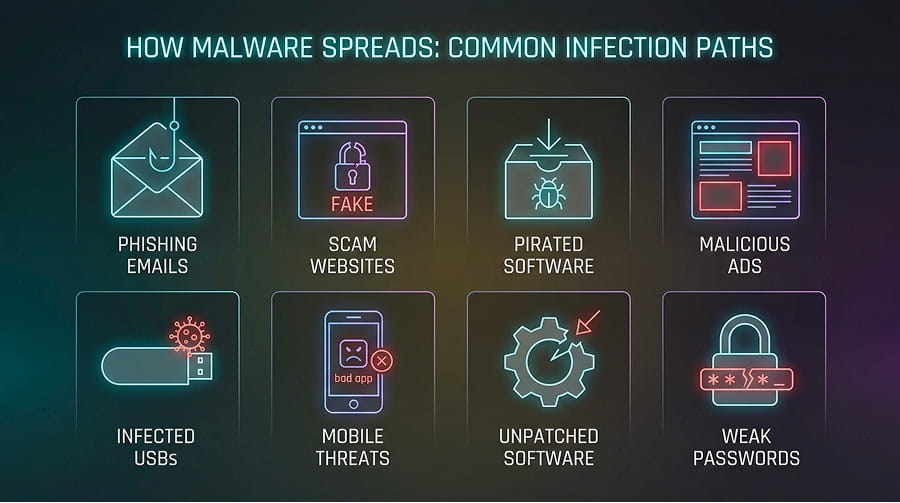
- Phishing emails and malicious attachments: Malware often arrives through fake invoices, CVs, shared files, or urgent security messages. One opened attachment or login click can be enough.
- Fake links and scam websites: Attackers build pages that mimic banks, delivery services, cloud tools, or login portals. These sites steal credentials or push malware downloads.
- Infected downloads and cracked software: Pirated software, fake installers, shady browser tools, and unofficial utilities often hide trojans or infostealers. What looks free can become very expensive.
- Malvertising and drive-by downloads: Some malicious ads or compromised pages trigger redirects, exploit code, or stealth downloads. The user may not even realize anything happened.
- USB devices and shared files: Infected USB drives and shared folders can spread malware between home, school, and office devices. Physical access still creates digital risk.
- Fake apps and mobile threats: Fake mobile apps, sideloaded APKs, and cloned banking tools can steal SMS codes, passwords, and permissions. Phones are a major malware target too.
- Exploited software vulnerabilities: Some malware spreads through unpatched systems, browsers, plugins, VPNs, or business software. In these cases, outdated software becomes the opening.
- Compromised remote access and weak credentials: Attackers use stolen passwords or poorly protected remote access tools to get inside directly. Once in, they can deploy malware across the environment.
The Comprehensive Malware Protection Guide
To defend against modern malware, you need to transition from reactive prevention to proactive, behaviour-based resilience.
Keep software, browsers, and operating systems updated
A lot of malware just looks for old software with known holes. Keep operating systems, browsers, plugins, office tools, VPN clients, and router firmware updated.
For most users, auto-update is one of the easiest forms of malware prevention. For teams, patching needs ownership and speed.
System hardening
Hardening means reducing the attack surface before malware gets a chance. Remove outdated software, disable unused services, close unused ports, restrict scripts, and turn off risky features.
Zero trust architecture
Zero trust means no device, user, or app gets automatic trust. Verify access, segment systems, and give only the minimum permissions needed.
Use strong passwords and MFA
Reused or weak passwords make malware damage much worse. One stolen credential can unlock multiple services.
Use unique passwords, store them in a secure password manager, and enable MFA on email, cloud storage, banking, and admin accounts.
Learn to spot phishing before it lands
A lot of malware arrives disguised as something ordinary: an invoice, shared file, login alert, or delivery issue. The message is designed to make you act fast. Pause before clicking. Check the sender, domain, wording, and request.
Avoid risky downloads, links, and attachments
Cracked software, unofficial apps, shady extensions, unknown attachments, and fake updates are common malware entry points.
Download only from trusted sources and be careful with ZIP files, executables, and documents that ask to enable content.
Use antivirus and endpoint protection tools
Antivirus still matters, but it works best when combined with behavior monitoring, exploit protection, and web filtering.
For individuals, a reputable security tool is a baseline. For businesses, endpoint protection should also include visibility, alerting, and device isolation.
Back up important data regularly
Backups transform disasters into manageable incidents. Without them, ransomware, wipers, or device failure can leave you stuck.
Keep multiple backup copies and make sure at least one is isolated. Test restores too.
Limit admin access and app permissions
Malware loves privilege because privilege turns a small infection into a bigger compromise.
Use least privilege by default. Give admin rights only when needed, and review app permissions on both computers and phones.
Protect email – the most common attack entry point
Email is still one of the main ways malware gets in. That makes email security a core part of malware protection.
Use strong passwords, MFA, spam filtering, attachment scanning, and careful verification of unexpected messages.
Secure mobile devices and remote work environments
Phones, tablets, and remote laptops now hold email, cloud access, MFA codes, files, and browser sessions. They need the same attention as desktops.
Keep devices updated, avoid sideloaded apps, lock screens, encrypt devices, and secure home Wi‑Fi.
Build safe habits, not just a tech stack
Tools matter, but routine behavior matters just as much. Strong malware protection fails when people reuse passwords, skip updates, and trust every urgent message.
Pause before downloading, verify before clicking, question urgency, and review permissions regularly.
Warning Signs Your Device May Be Infected
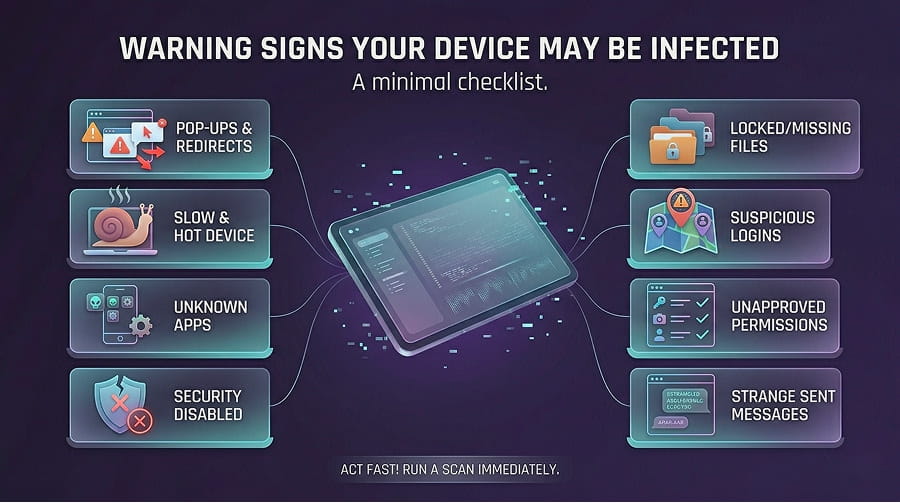
Although malware rarely announces itself, it almost always leaves a trail. Look out for these warning signs:
- Unusual pop-ups and redirects: If your browser suddenly throws constant ads, fake warnings, or sends you to strange pages, malware may be interfering with web traffic or browser settings.
- Slower performance and overheating: A device that becomes unusually slow, noisy, or hot without a clear reason may be running hidden malicious processes in the background.
- Unknown apps or processes: New programs, startup entries, browser extensions, or background tasks you did not install can be a strong warning sign of malware activity.
- Disabled security tools: If antivirus, firewall settings, browser protections, or system updates are suddenly turned off, malware may be trying to weaken your defenses.
- Suspicious account activity: Password reset emails, unfamiliar logins, missing messages, or accounts sending strange content can mean malware has already stolen access or session data.
- Browser homepage or search engine changes: If your homepage, default search engine, or browser settings change on their own, adware or browser hijacking malware may be involved.
- Unexpected crashes or forced restarts: Frequent crashes, freezing, or random restarts can happen when malware interferes with normal system processes.
- Files missing, renamed, or suddenly encrypted: If documents disappear, file names change, or you cannot open your files anymore, ransomware or destructive malware may be active.
- Unusual network or data usage: A sudden spike in internet traffic, cloud syncing, or mobile data use can signal that malware is sending stolen data out or downloading more payloads.
- Contacts receiving strange messages from you: If friends, coworkers, or customers say they received odd emails, DMs, or links from your account, malware may have hijacked your sessions or credentials.
- New permissions or settings you did not approve: On phones especially, unexplained access to accessibility services, SMS, notifications, contacts, or admin settings can point to malicious apps.
What To Do If You Already Suspect Malware
Taking a deep breath and acting fast is better than panicking and making mistakes. Here is your emergency response plan for when malware prevention fails:
- Disconnect and isolate the device: Disconnect from Wi‑Fi, unplug network cables, turn off Bluetooth if needed, and isolate external drives. This can reduce data theft, remote control, and spread to other systems.
- Stop entering passwords or sensitive data: Do not log in to email, banking, cloud storage, or work tools from the suspected device. If malware is capturing keystrokes or sessions, every new login can make the situation worse.
- Take note of what you are seeing: Write down unusual pop-ups, ransom notes, strange processes, error messages, or the time the issue started. Those details can help with cleanup, recovery, or professional investigation.
- Notify IT or security if it is a work device: Do not try to quietly fix a company device on your own if it touches shared systems or business data. Early reporting can prevent the malware from spreading further.
- Run a trusted security scan: Use a reputable antivirus or endpoint protection tool and run a full scan. Update the tool first if possible, and avoid downloading random “cleanup” tools in panic mode.
- Boot into safe mode or use offline scanning if needed: If malware keeps interfering with normal scans, safe mode or boot-time scanning may help detect and remove it. Some threats are easier to catch before the full system loads.
- Change passwords from a clean device: Use another trusted device to change passwords for email, banking, cloud storage, work accounts, and your password manager. Start with your email account first, since email is often the recovery point for everything else.
- Revoke active sessions and review MFA settings: Sign out of active sessions where possible and check connected devices, recovery emails, and MFA methods. Stolen browser cookies or changed recovery settings can keep attackers inside even after a password reset.
- Check financial and sensitive accounts: Review banking, payment services, crypto wallets, cloud drives, and work tools for suspicious activity. If needed, contact your bank or provider quickly to lock things down.
- Restore from backups if needed: If the infection is serious, persistent, or linked to ransomware, wiping the device and restoring from a known clean backup may be safer than manual cleanup. Make sure the backup predates the infection.
- Update, patch, and review the cause before reconnecting: Before putting the device back into normal use, install updates and figure out how the malware got in. Otherwise the same weak point may be exploited again.
- Watch for follow-on abuse: Keep an eye on password reset emails, strange messages, new login alerts, account lockouts, and unexpected purchases. Malware damage often continues after the original infection is removed.
- Know when to get professional help: If you see ransomware notes, signs of data theft, repeated reinfection, unusual admin activity, or business system impact, involve security professionals quickly. Fast expert help can preserve evidence, limit damage, and shorten recovery time.
FAQ About Malware Protection
What is the difference between malware and a virus?
Malware is the broad category for malicious software, while a virus is just one type of malware. In other words, every virus is malware, but not every malware sample is a virus.
Can malware spread through email?
Yes. Email is one of the most common ways malware spreads through malicious attachments, phishing links, fake login pages, and social engineering.
Can iPhones and Macs get malware?
Yes, although the threat patterns may differ from Windows. No modern device is immune, which is why malware protection and malware prevention matter across every platform.
Is antivirus enough to stay protected?
No. Antivirus helps, but strong malware protection also depends on updates, MFA, safe browsing, secure email habits, backups, and careful handling of links and downloads.
Can malware steal passwords and banking details?
Yes. Infostealers, spyware, and keyloggers are often built specifically to capture passwords, cookies, payment details, and other sensitive data.
How do I know if an attachment is safe?
Treat unexpected attachments with caution, especially ZIP files, executables, and documents asking you to enable content. If the message feels unusual, verify it through another channel before opening anything.
What should businesses do to reduce malware risk?
Businesses should combine patching, endpoint protection, email security, MFA, least-privilege access, backups, and employee awareness training. Strong malware prevention is a mix of technology, process, and user behavior.
How often should I back up my data?
Back up as often as your risk and recovery needs require. For critical files or business systems, daily backups are often a minimum, and important backups should be isolated from the main environment.