


TL;DR
One of the fastest ways to clean up your inbox without babysitting it all day is to learn how to create email filters. A good email filter can send receipts to one folder, newsletters to another, and important emails to the 'Priority' folder. It can also move low-value emails out of your inbox before they steal your attention.
- Use email filters to route messages based on sender, subject line, keywords, mailing lists, or other conditions.
- Start with the obvious wins: newsletters, receipts, work threads, and VIP contacts.
- Keep your most useful rules simple. The more complicated the logic, the easier it is to hide something important by mistake.
- Gmail, Outlook, Atomic Mail, Yahoo Mail, and all let you create email filter in a few steps, even if the interface names are slightly different.
- In Atomic Mail, aliases add another layer of organization: you get 10 free aliases per account, which helps separate signups, shopping, work, and private communication while protecting your main inbox.
What You Can Do With Email Filters
Here is what happens when you create email filter rules:
- Automatically sort incoming emails
- Keep important messages visible
- Reduce spam and distractions
- Organize newsletters, receipts, work threads, and client emails
- Save time without checking your inbox all day
A good email filter tidies your inbox and helps you see what matters first.
How to Create Email Filters in Gmail
Gmail relies on a search-driven labeling system rather than traditional folders. An email exists in "All Mail" and can hold multiple tags simultaneously. Filters function exactly like saved search queries.
How to create a filter in Gmail
1. Open Gmail.
2. Click the search options icon in the search bar.
3. Enter your conditions.
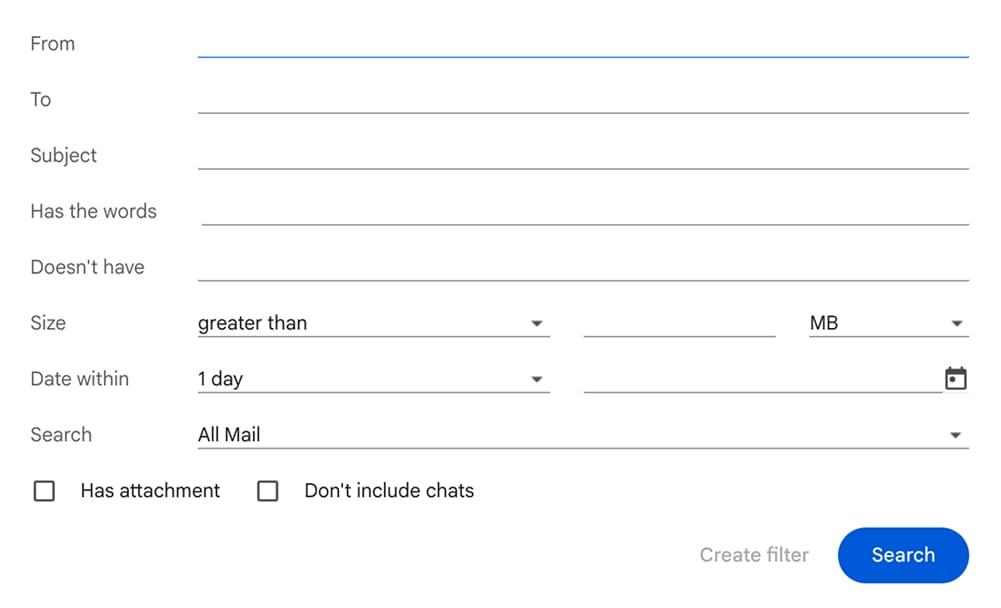
4. At the bottom of the search window, click "Create filter".
5. Choose the action you want.
6. If needed, tick the option to apply the rule to matching existing emails.
7. Save the rule.
Use a particular message to create a filter
When you already have a message you want to sort, do this:
Open Gmail > check the checkbox next to the email you want > click More > choose Filter messages like these > enter or refine your filter criteria > click Create filter > choose what Gmail should do next > save the filter.
Edit or delete filters
Open Gmail > click Settings in the top right > choose See all settings > open Filters and Blocked Addresses > find the filter you want to change > click Edit to update it or Delete to remove it > if you edit the rule, click Continue after making changes > click Update filter or OK.
One useful thing to remember: Gmail uses labels, not just folders. That means one message can carry multiple labels at once. So when you create email filters in Gmail, you are not limited to a one-message, one-folder setup. A client email can be tagged as both urgent and project-related, which gives you more flexibility without making the inbox harder to manage.
How to Create Email Filters in Outlook
If you want to create email filters in Outlook, there is an important thing to know: some rules only work when the Outlook app is open, while others keep working even when it is closed.
That is why it is usually better to create filters (rules) in Outlook on the web. They keep running all the time, so your email filter setup is more reliable.
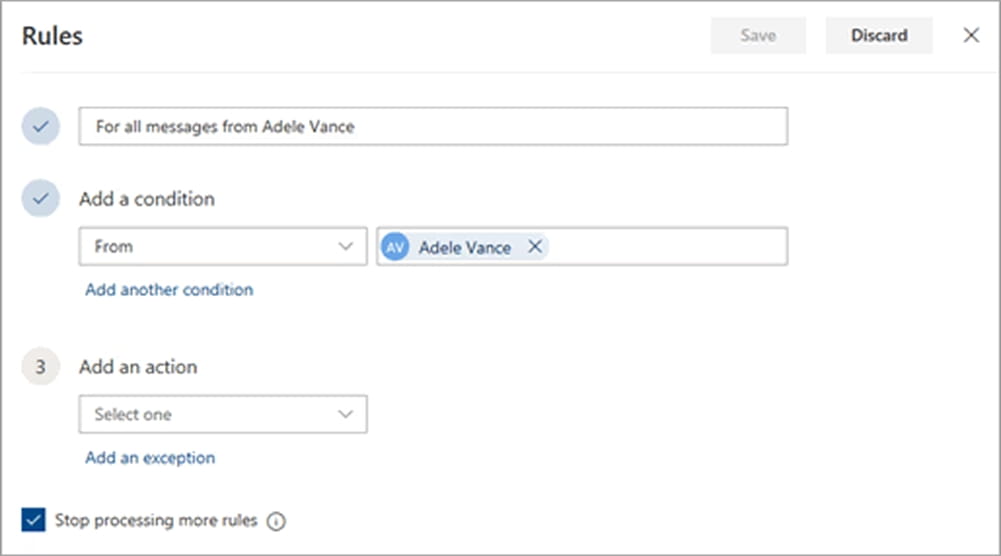
Another Outlook-specific detail is Stop processing more rules. This setting prevents later rules from conflicting with the current one, and in the web app it is enabled by default.
How to create a filter in Outlook on web
- Open your Outlook web client.
- Click the gear icon (Settings) located at the top right.
- Go to Mail, then click on Rules.
- Click Add new rule.
- Name the email filter.
- Add a condition.
- Add an action.
- Click Save.
Edit or delete a rule: open Outlook on the web > go to Settings > Mail > Rules > select the rule > click Edit/Delete. To pause it for a while, remove the check mark next to the rule.
How to create a filter in New Outlook
Create a rule from a message: open new Outlook > right-click the message > hover over Rules > click Create rule > choose the folder or action > click OK.
Edit or delete a rule: open new Outlook > click Settings > go to Mail > Rules > find the rule > click Edit/Delete. To turn it off without deleting it, use the toggle next to the rule.
How to create a filter in Classic Outlook
Create a rule from a message: open classic Outlook > right-click a message > click Rules > Create Rule > choose the condition and action > click OK. If needed, run the rule on messages already in the folder.
Edit or delete a rule: open classic Outlook > click File > Manage Rules & Alerts > select the rule > click Change Rule/Delete. To pause it, clear the checkbox next to the rule.
Outlook.com
Create a rule from a message: open Outlook.com > right-click the message > click Rule > Create rule > choose the folder or click More options for a fuller setup > click OK or Save.
Create a new rule from settings: open Outlook.com > click Settings > go to Mail > Rules > click Add new rule > add a name, condition, and action > click Save.
Edit or delete a rule: open Outlook.com > click Settings > go to Mail > Rules > find the rule > click Edit/Delete. To turn it off temporarily, use the toggle next to the rule.
How to Create Email Filters in Atomic Mail
Currently, filtering in Atomic Mail is simplified.
How to create a filter in Atomic Mail
- Open Atomic Mail.
- Tap Filter in the top right corner.
- Choose the options you need.
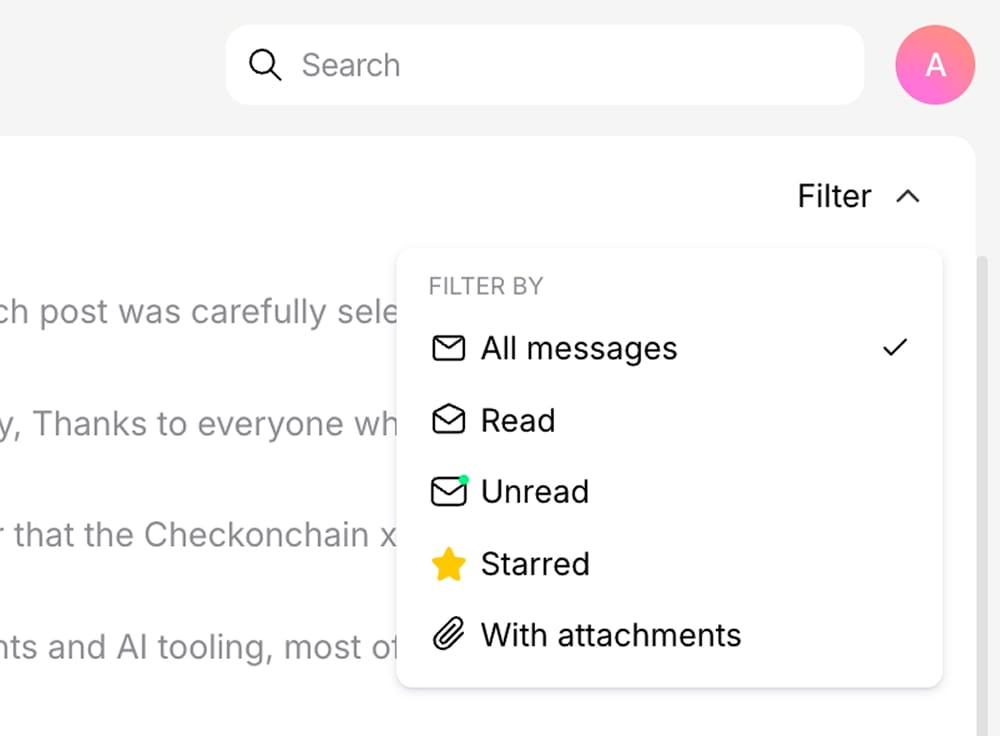
The enhanced email filtering system is already in active development, so more advanced filter logic and management options are on the way.
Atomic Mail also offers a privacy-friendly alternative for inbox organization: 10 free email aliases per account. Aliases help separate shopping, signups, work, and personal communication, while also protecting your main inbox from unnecessary exposure. In many cases, that means cleaner inbox organization and better privacy without extra manual steps from you.
How to Create Email Filters in Yahoo Mail
Yahoo uses a folder-based system, and filters run from top to bottom in the order they are listed. So if a broad rule sits above a specific one, it may catch the email first. Yahoo accounts also usually have a limit on how many active filters you can keep (up to 500).
How to create a filter in Yahoo Mail
- Open Yahoo Mail.
- Go to settings and find the Filters section.
- Create a new filter and name it.
- Add the conditions.
- Choose the folder where matching emails should go.
- Save the filter.
Pros and Cons of Email Filters
Creating an effective email filter can make your inbox feel much lighter, but a poor filter can easily miss important messages. But filters are not magic. They are just rules that can be too broad, too narrow, out of date, or stacked in the wrong order.
Pros
- Time savings through automatic message sorting
- Better visibility for important emails
- Less inbox clutter from newsletters, promotions, and routine alerts
- Faster access to receipts, invoices, and order confirmations
- Cleaner separation between personal, work, and signup email
- Fewer repetitive manual actions
- Better focus during the day
Cons
- Risk of hiding important emails by mistake
- Too many rules can become confusing
- Broad keywords may catch unrelated messages
- Overlapping rules can send emails to the wrong place
- Old filters can stay active long after they stop being useful
- Extra setup and testing at the beginning
How to solve this? Easy. Audit your rules monthly – if you know how to create email filters, you must also know how to maintain them. Keep your logic simple.
The Best Types of Filters to Create First
How to create email filters without overcomplicating your inbox? Start with the filters that solve common inbox pain fast.
- VIP contacts: Messages from your boss, top clients, co-founder, accountant, or family. Keep them visible, labeled, or starred.
- Newsletters and promotions. Move marketing emails, digests, and product updates into a separate folder. Fastest way to reduce clutter.
- Receipts, invoices, and orders. Group payment confirmations, billing alerts, and purchase receipts in one place for easy search later.
- Work and project notifications. Sort task updates, calendar alerts, ticketing messages, and tool notifications out of the main inbox.
- Signups and alias-based mail: Separate shopping, public signups, work, and private communication by email address or alias.
- Job applications and recruiter emails: Very useful, often forgotten.
- Travel and booking confirmations: Flights, hotels, train tickets, and visa updates in one folder.
- Renewal and subscription reminders: Easy to miss, expensive to ignore. Very useful for SaaS tools, domains, hosting, and paid memberships.
Top Email Filter Lifehacks
- Use a “read later” folder. Move newsletters, digests, and non-urgent updates out of the main inbox without deleting them.
- Keep one folder for money-related mail. Group receipts, invoices, subscription renewals, and payment alerts for faster search later.
- Let one rule do one job. Separate email filters for important contacts, receipts, newsletters, and notifications are easier to manage than one overloaded rule.
- Avoid broad keywords. General words like “update” or “account” can catch the wrong emails. More specific conditions work better.
- Review filters regularly. Old rules often stay active long after they stop being useful.
- Test every new filter. Watch the next matching email or send a test message before fully trusting the rule.
- Use aliases for better organization. Create separate aliases for shopping, signups, work, or private communication, then pair each one with an email filter for a cleaner inbox.
- Prioritize security-related mail. Keep login alerts, password resets, verification codes, and account warnings easy to spot.
- Use Boolean logic and search operators where supported. Some email services let you refine conditions with operators like AND, OR, quotes, exclusions, or field-based search. This helps create a more precise email filter and reduces false matches.
- Start small. A few useful filters usually work better than a huge rule system that becomes hard to control.
FAQ
What is an email filter?
An email filter is a rule that checks incoming messages and does something automatically when certain conditions are met. For example, it can move a message, label it, archive it, flag it, or send it to a folder.
How to create email filters?
In most email services, the logic is the same: choose the trigger, choose the action, and save the rule.
What is the difference between a filter, a rule, a label, and a folder?
A filter or rule is the automation. A label or folder is usually the destination. In plain terms, the email filter decides what happens, and the label or folder shows the result.
Can email filters help with spam?
Yes, but they are not a full replacement for spam protection. A custom email filter is best for recurring low-value mail, newsletters, store promotions, or platform alerts you want out of the way.
How many email filters should I have?
Fewer than you think. If you are a regular user, begin with a handful of useful ones. Too many filters create confusion, not clarity.
Can filters make me miss important emails?
Yes, if the rule is too broad or poorly placed. That is why it is smart to test every email filter setup before trusting it fully.